A deactivated user is not a cleaned-up user
When someone leaves, most Salesforce orgs do one thing: untick Active. The user can’t log in any more, the licence is free again, and the ticket gets closed. But nothing else has changed.
What deactivation actually changes
Deactivating sets one field: User.IsActive = false. Everything that grants access lives somewhere else and stays exactly as it was:
| Access | Where it lives | After deactivation |
|---|---|---|
| Profile | User.ProfileId |
unchanged |
| Role | User.UserRoleId |
unchanged |
| Permission sets | PermissionSetAssignment |
still assigned |
| Permission set groups | PermissionSetAssignment with a PermissionSetGroupId |
still assigned |
| Public groups and queues | GroupMember |
still a member |
Salesforce does this on purpose. Deactivation is meant to be reversible, so it reverses completely.
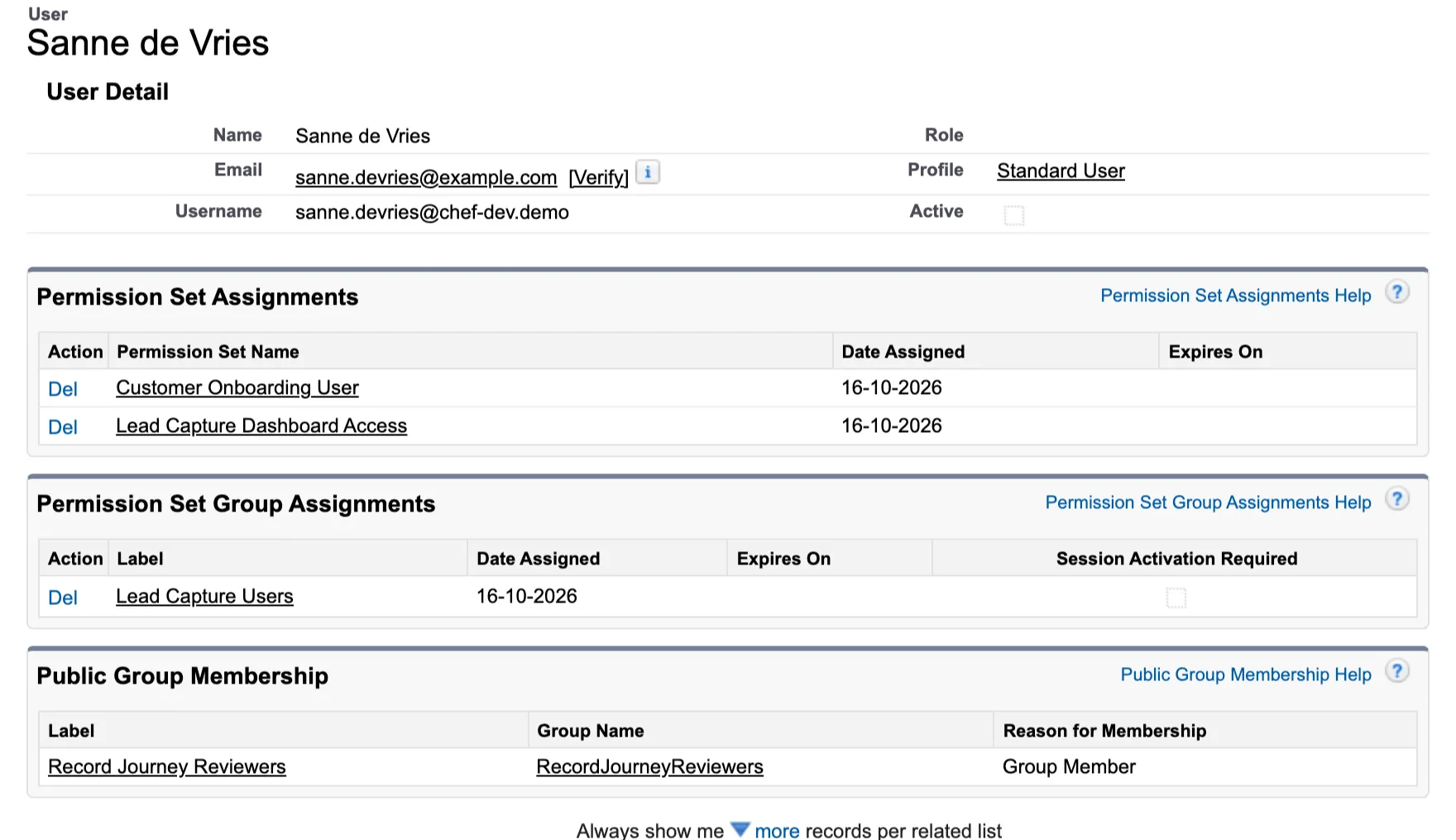
Deactivated, not cleaned up: Active is unticked, and every grant is still there.
Three ways the old access comes back
Usernames are unique, so whenever someone needs Salesforce again, the quickest route is to reactivate their old user. That one update restores everything they ever had. I see it happen in three situations:
- They come back for a new assignment. Contractors return. Employees move to another team, leave and get rehired. The person who was a system administrator on a project two years ago is a system administrator again, now in a role that needs read access to three objects.
- They were deactivated for inactivity. Many orgs deactivate everyone who hasn’t logged in for 90 days, to free licences and to pass the audit. Then the user turns out to need Salesforce after all, files a ticket, and gets reactivated. With the access they had 90 days ago, not the access their job needs today.
- Nobody looks at all. A just-in-time provisioning handler (
Auth.SamlJitHandler) that setsIsActive = truefor a returning user inupdateUserdoes it on the first single sign-on login. It usually only touches the fields in the assertion. The rest comes back unchanged.
In each case, nobody granted that access on purpose. It just came back.
The rule. Access is granted for a job, not for a person. When the job ends, the access ends with it, and a returning person starts from the minimum.
What de-provisioning should do
Deactivation is the last step, not the only one. In order:
- Freeze the user. Set
UserLogin.IsFrozen = true. Login is blocked immediately, while the rest of the clean-up runs. - Record what they had. Profile, role, permission sets, groups and queues, with a date. That is your audit trail, and it lets you restore access deliberately if the leaver turns out to be a mistake.
- Remove the assignments. Delete the
PermissionSetAssignmentrows that aren’t owned by the profile, and theGroupMemberrows for public groups and queues. If you use permission set licences or managed package licences, remove those assignments too. - Clear the role and drop the profile. Every user needs a profile, so you can’t remove it. Switch it to a minimum-access profile: Minimum Access - Salesforce for Salesforce licences, or your own minimal profile for other licence types.
- Then deactivate.
When the person comes back, they start from that minimum.
In Apex
Steps 3 to 5 only touch setup objects, so they can run in one transaction:
public with sharing class UserDeprovisioner {
    public static void deprovision(Set<Id> userIds) {
        delete [
            SELECT Id FROM PermissionSetAssignment
            WHERE AssigneeId IN :userIds
              AND PermissionSet.IsOwnedByProfile = false
        ];
        delete [
            SELECT Id FROM GroupMember
            WHERE UserOrGroupId IN :userIds
              AND Group.Type IN ('Regular', 'Queue')
        ];

        Id minimumAccess = [
            SELECT Id FROM Profile WHERE Name = 'Minimum Access - Salesforce'
        ].Id;
        List<User> users = new List<User>();
        for (Id userId : userIds) {
            users.add(new User(
                Id = userId,
                ProfileId = minimumAccess,
                UserRoleId = null,
                IsActive = false
            ));
        }
        update users;
    }
}
Step 2 doesn’t fit in there. The snapshot is a custom object, and mixing DML on setup objects (User, PermissionSetAssignment, GroupMember) with DML on regular objects in one transaction throws a MIXED_DML_OPERATION error. Write the snapshot first, then run the clean-up in a separate transaction, for example a Queueable. That order matters: if the clean-up fails, you still know what the user had.
This is a sketch, not production code. A real version also checks the licence type before picking a profile, handles users who own records the org still needs, and logs every step.
Better: let the identity provider decide, at every login
Cleaning up on the way out fixes the leaver. It doesn’t fix the drift in between: the permission set someone got “just for this sprint”, the group a colleague added them to, the role that changed in HR but never in Salesforce.
If your users log in through single sign-on, the identity provider already knows what they should have. Entra ID can put a user’s groups or app roles in the SAML assertion or the OIDC token. Map those values to access in Salesforce, and re-apply the mapping on every login instead of only the first:
| Entra group or app role | Profile | Access |
|---|---|---|
Event Manager |
Standard User | permission set group Lead Capture Users; permission sets Lead Capture Dashboard Access and Customer Onboarding User; public group Record Journey Reviewers |
Sales Representative |
Standard User | permission set group Sales Workspace; permission set Business Registration User |
The updateUser method of a SAML JIT handler or an OIDC registration handler runs on every single sign-on login. That is the moment to compare what the user has with what their groups say they should have:
- Grants the mapping requires and the user lacks are added.
- Grants the mapping manages and the user’s groups don’t include are removed. That covers a permission set given by hand, and one that was taken out of the role last week.
- Profile and role follow the mapping as well.
The effect: change a group’s access in one place, and every member converges on their next login. Move someone to another group in Entra, and their Salesforce access follows. The mapping is the source of truth, and the org is pulled back to it every time someone logs in. That’s data governance, not a quarterly clean-up.
Two details decide whether this works in practice:
- Match on exactly what Entra sends. The groups claim holds object IDs by default, not names. Either configure the claim to send names, use app roles, or name your mapping records after the IDs.
- Decide what the mapping manages. Removing everything the mapping doesn’t mention would also strip the system administrator’s own access. A safer rule is to manage only the grants that appear somewhere in the mapping, and leave everything else alone. The consequence: a permission set no role mentions is invisible to the sync, so keep the next section’s queries running.
Find what already slipped through
Most orgs already have inactive users with access they shouldn’t keep. This query lists every permission set and permission set group still assigned to someone who can’t log in:
SELECT Assignee.Username, PermissionSet.Name, PermissionSetGroup.DeveloperName
FROM PermissionSetAssignment
WHERE Assignee.IsActive = false
  AND PermissionSet.IsOwnedByProfile = false
To start with the dangerous ones, narrow it to permission sets that can see or change everything:
SELECT Assignee.Username, PermissionSet.Name
FROM PermissionSetAssignment
WHERE Assignee.IsActive = false
  AND (PermissionSet.PermissionsModifyAllData = true
    OR PermissionSet.PermissionsViewAllData = true)
That second query also catches profiles, because every profile has its own permission set with IsOwnedByProfile = true. An inactive user on the System Administrator profile shows up there.
Every row in these results is one reactivation away from being live again. Auditors keep finding this, and fixing it is cheap. Run the queries on a schedule and it stays fixed.
Automate it
Doing all of this by hand works until someone is in a hurry. I built User Provisioning to handle the whole lifecycle in Salesforce:
- It maps Entra groups or app roles to profiles, roles, permission sets, permission set groups, licences and public groups, in records an admin maintains.
- It applies that mapping on every SAML or OIDC login. With remove extras on sync switched on, managed grants the user’s roles don’t include are removed again.
- When someone leaves, it snapshots what they had, removes it and drops the profile to the minimum.
- On a schedule, it flags inactive users who still hold elevated access.